[Performance] : Flame Graphs

In the previous article we explored the basic capabilities of linux Perf_tool.
In this write-up I am trying to extend these capabilities and show how to generate and read Flame Graphs for analyzing the profiles generated with Perf_tool.

How to generate Flame Graphs ?

  • To start with, we will need perf_tools linux profiler to capture the profile first. Follow the steps under “How to setup perf tool?” in the previous article.
  • Now if you collect a profile of the CPU using perf_tool setup in the above step, there is a possibility that you might see a lot of symbol link values in the place of Function names.
  • To avoid this and keep the names of functions for the corresponding Symbol links resolved before hand, clone the below repository on the machine which you want to profile and follow below steps.
* git clone https://github.com/jvm-profiling-tools/perf-map-agent.git
* Navigate to installation directory where there is "CMakeLists.txt" in the above repo
* run " cmake ."
* run "make"
* Navigate to the directory /perf-map-agent/bin in the above repository
* run "./create-java-perf-map.sh <pid>" --> where <pid> is the processId of the process you want to profile
* This will generate a "perf-<pid>.map" file in /tmp -- this will be used for resolving all the symbol links
  • Clone the Flame Graph dependencies from the below repository.
    git clone https://github.com/brendangregg/FlameGraph
  • Alright, almost there! Now lets collect the CPU profile for the process which we want to investigate.
    Note : More details about the below command and the capabilities of perf_tool in the previous article.
perf record -F 99 -ag -p PID-- sleep 60
  • Now lets generate a flame graph out of the profile collected.
#Copy the perf.data file generated from the profiler in the above step
perf script | ./stackcollapse.pl > outperf-folded
./flamegraph.pl outperf-folded > flameGraph.svg
  • And open the flameGraph.svg in one of the browsers.

How to read a Flame Graph ?

  • Now that we have successfully generated the flame graphs, lets see how we can use it for analysis.
  • Flame Graphs are read bottoms up, just like a Thread dump.
  • If you use the parameter "--color=java” while generating the FlameGraph.svg file, you will get different color codes for different type of frames like Green is Java, yellow is C++, orange is kernel, and red is the remainder (native user-level, or kernel modules).
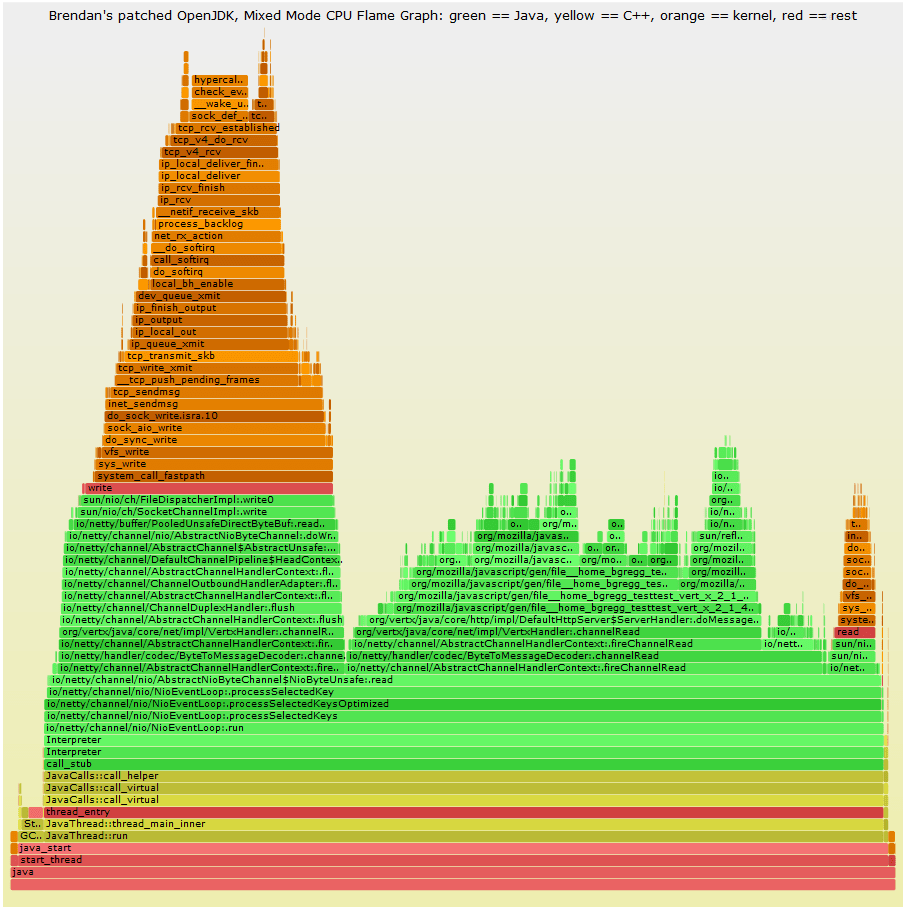
source : Brenden Gregg’s Flame Graph page
  • In the flame graph, the length of each tile (frame) represents the time it took on cpu. That means, larger the length of a tile, larger was its CPU time. So while debugging an issue, you can pick a larger tile and use it as a starting point for debugging.
  • The stack of functions on the base tile represent the child calls from within the base function. Using this we can see if any non-required / repetitive calls are made to any functions.
  • Also, all flame graphs are interactive. You can click on any function tile and see what % of time was spent on it, number of samples collected and what are the child calls with in.
  • On a whole, Flame Graphs are a great tool to generate interactive profiles to see where most of the CPU time is spent in the code.
  • Although setting up prerequisite & generating FlameGraphs has a steep learning curve, I would say it is a great tool to have in a Performance Engineer’s arsenal.
  • It pays off when you want to look at all the system level (low-level kernel, io etc) and application level (through all stacks) cpu calls in a single place. Most of the other profilers fall short at this.

How it helped me solve a Performance Issue ?

  • I had an issue at hand where the system under test (storm) had high cpu usage even when there was no load.
  • On using Yourkit, I did not get anything in the HotSpot other than some threads which were getting on CPU and then going back to sleep state.
  • On looking at FlameGraph however, I could see that these threads which are periodically waking up are Storm Spouts, that are making a lot of system calls via vDSO(virtual dynamic shared object) to get the clocktime of the system.
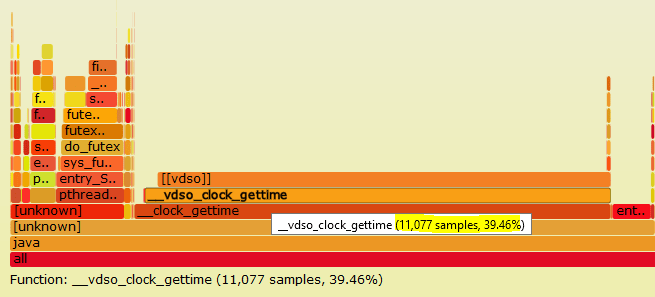
  • This guided me to check the clocksource set on the system, which was xen and then change it to more optimum tsc.
  • Overall helping us save over 30% of CPU time.

Further reading :

Happy tuning.

[Performance Debugging] : Root causing “Too many open files” issue

Operating system : Linux

This is a very straight forward write-up on how to root cause “Too many open files” error seen during high load Performance Testing.

This article talks about:

  • The ulimit parameter “open files”,
  • Soft and Hard ulimits
  • What happens when the process overflows the upper limit
  • How to root cause the source of file reference leak.

Scenario :

During a load test, as the load increased, I was seeing failures in transaction with error “Too many open files”.


Thought Process / background:

As most of us already know, we see “Too many open files” error when the total number of open file descriptors crosses the max value set.

There are couple of important things to note here :

  • Ulimit means – User limit for the use of system wide resources. Ulimit provided control over the resources available to the shell and the process started by it.
    • Check the user limit values using the command – ulimit -a
  • These limits can be set to different values to different users. This is to let larger set of system resources to be allocated to a user who owns most of the process.
    • Command to check ulimit values for different user —  sudo – <username> -c “ulimit -a”
  • Ulimit in itself is of two kinds. Soft limit and Hard limit.
    • A hard limit is the maximum allowed values to a user, set by the superuser/root. This value is set in the file /etc/security/limits.conf. Think of it as an upper bound or ceiling or roof.
      • To check hard limits – ulimit -H -a
  • A soft limit is the effective value right now for that user. The user can increase the soft limit on their own in times of needing more resources, but cannot set the soft limit higher than the hard limit.
    • To check soft limits – ulimit -S -a

Now that we know to a fair extent about ulimit, let’s see how we can root cause the reason for “Too many open files” error and not just increase the max limits for the parameter.


Debugging:

  • I was running a load test(that deals with a lot of files) and after a certain load limit, the test started to fail.
  • Logs showed exceptions with stacks leading to “Too many open files” error.
  • First instinct – Check the values set for open file descriptor.
    • Command –  ulimit -a
    • Note: it is important to check the limits for the same user who owns the process.
  • The value was set to a very low limit of 1024. I increased it to a larger value of 50,000, and quickly reran the test. (link on how to make the change mentioned in above section)
  • Test started failing even after increasing the open file descriptor values.
  • I wanted to see what where these file references which were being held on to. So I took a dump of open file references, and wrote to a file.
    •  lsof > /tmp/openfileReferences.txt

  • Above commands dumps the files referenced all the users. Grep out the output only for the user that you are interested in .
    •  lsof | grep -i “apcuser” > /tmp/openfileReferences.txt
  • Now if you look in to the lsof dump, you will see the second column being the ProcessID which is holding on to the file references.
  • You can run the below awk command which sums up the list of open files per process, sorts it based on the process holding max number of files and lists the top 20.
    • cat openfile.txt | awk ‘{print $2 ” ” $1; }’ | sort -rn | uniq -c | sort -rn | head -20
  • That’s it ! Now open the dump files and look at the files held in reference (last column from lsof dump.). It will give the file which is held in reference.
  • In my case, it was a huge list of temp files which were created during the process, but the stream was not closed, leading to file reference leaks.

Happy tuning!


Weekly Bullet #2 – Summary for the week

Hi All !

Here is the weekly summary of Technical / Non-Technical topics that I found very resourceful.

Technical :

  • Programming notes on almost every language. I have learnt half of the Python I know from here. “Programming Notes for Professionals books
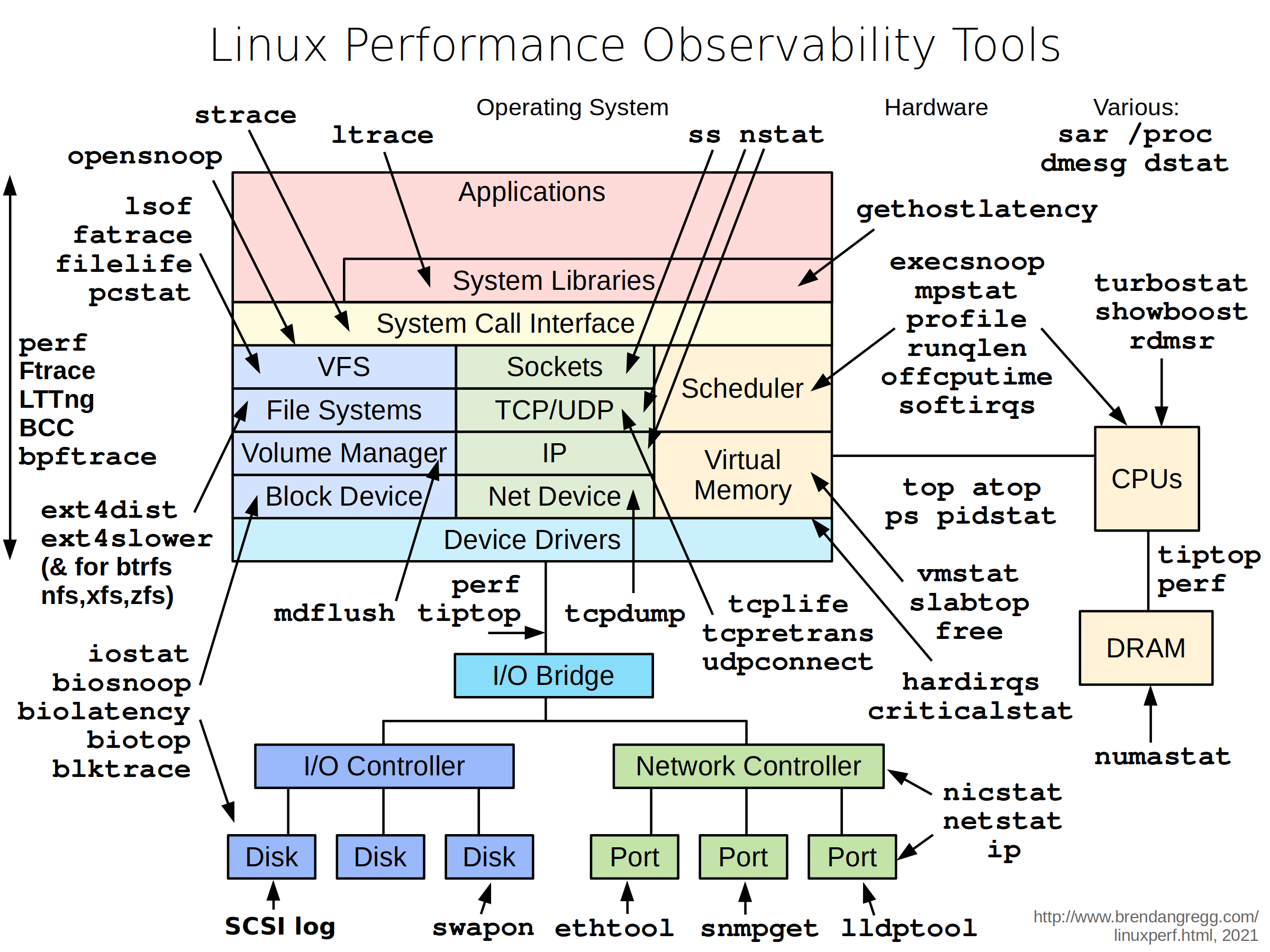
  • The reason I love Linux is, there are tools available for peeking in to the performance of every component. Below cheat sheet lists the set of commands to look in to different components.
Source : http://www.brendangregg.com/Perf/linux_observability_tools.png
  • For all those who want to take up management roles (Managers) in the future moving away from technical roles, remember, “Moving from dev to manager is NOT A PROMOTION. It’s a CAREER CHANGE.” This resource has interactions with all the people who went through this transition and their take on the transition. “Developer to Manager”
  • Podcast for weekly brief in to the Python World – “PythonBytes” – weekly one episode of 3o minutes

Non-Technical :

“If you let your learning lead to knowledge, you become a fool. If you let your learning lead to action, you become wise/wealthy.”

Tony Robbins

Have a great weekend.

Weekly Bullet #1 – Summary for the week

Hi All !

This is an idea that I have been planning to try for quite sometime now. A summary of what happened over the week. A weekly bullet would come out every Saturday and it would cover:

  • What interesting stuff happened in Tech or Non-Tech world over the week –(Not NEWS)
  • Extracts from the books that I am reading (somethings which have hit me hard)
  • Resources Tech/Non-Tech that I might have come across.

So here is the First of something New.


Technical :

Non-Technical :

  • Podcast that I truly enjoyed. This is a 32min short extract from a full episode. If I had only 30mins this entire weekend, I would just listen to this one podcast. Enough said! “Tools of Titans: Derek Sivers Distilled (#202)”
  • Another one from Derek Sivers. He has a site for all the books that he has recommended with notes/summary/extracts from the books. If you want to pick your next book, dive in here. “Derek Sivers – Books I have read”
  • Quote I’m pondering :


“Most of the 30year olds are trying to pursue many different directions at once, but not making progress in any. They get frustrated that the world wants them to pick one thing, because they want to do them all. The solution is to think long-term. To realize that you can do one of these things for a few years, and then do another one for a few years, and then another.”

Have a great week!