
In the previous article we explored the basic capabilities of linux Perf_tool.
In this write-up I am trying to extend these capabilities and show how to generate and read Flame Graphs for analyzing the profiles generated with Perf_tool.
How to generate Flame Graphs ?
- To start with, we will need perf_tools linux profiler to capture the profile first. Follow the steps under “How to setup perf tool?” in the previous article.
- Now if you collect a profile of the CPU using perf_tool setup in the above step, there is a possibility that you might see a lot of symbol link values in the place of Function names.

- To avoid this and keep the names of functions for the corresponding Symbol links resolved before hand, clone the below repository on the machine which you want to profile and follow below steps.
* git clone https://github.com/jvm-profiling-tools/perf-map-agent.git
* Navigate to installation directory where there is "CMakeLists.txt" in the above repo
* run " cmake ."
* run "make"
* Navigate to the directory /perf-map-agent/bin in the above repository
* run "./create-java-perf-map.sh <pid>" --> where <pid> is the processId of the process you want to profile
* This will generate a "perf-<pid>.map" file in /tmp -- this will be used for resolving all the symbol links- Clone the Flame Graph dependencies from the below repository.
git clone https://github.com/brendangregg/FlameGraph - Alright, almost there! Now lets collect the CPU profile for the process which we want to investigate.
Note : More details about the below command and the capabilities of perf_tool in the previous article.
perf record -F 99 -ag -p PID-- sleep 60- Now lets generate a flame graph out of the profile collected.
#Copy the perf.data file generated from the profiler in the above step
perf script | ./stackcollapse.pl > outperf-folded
./flamegraph.pl outperf-folded > flameGraph.svg- And open the flameGraph.svg in one of the browsers.

How to read a Flame Graph ?
- Now that we have successfully generated the flame graphs, lets see how we can use it for analysis.
- Flame Graphs are read bottoms up, just like a Thread dump.
- If you use the parameter
"--color=java” while generating the FlameGraph.svg file, you will get different color codes for different type of frames like Green is Java, yellow is C++, orange is kernel, and red is the remainder (native user-level, or kernel modules).
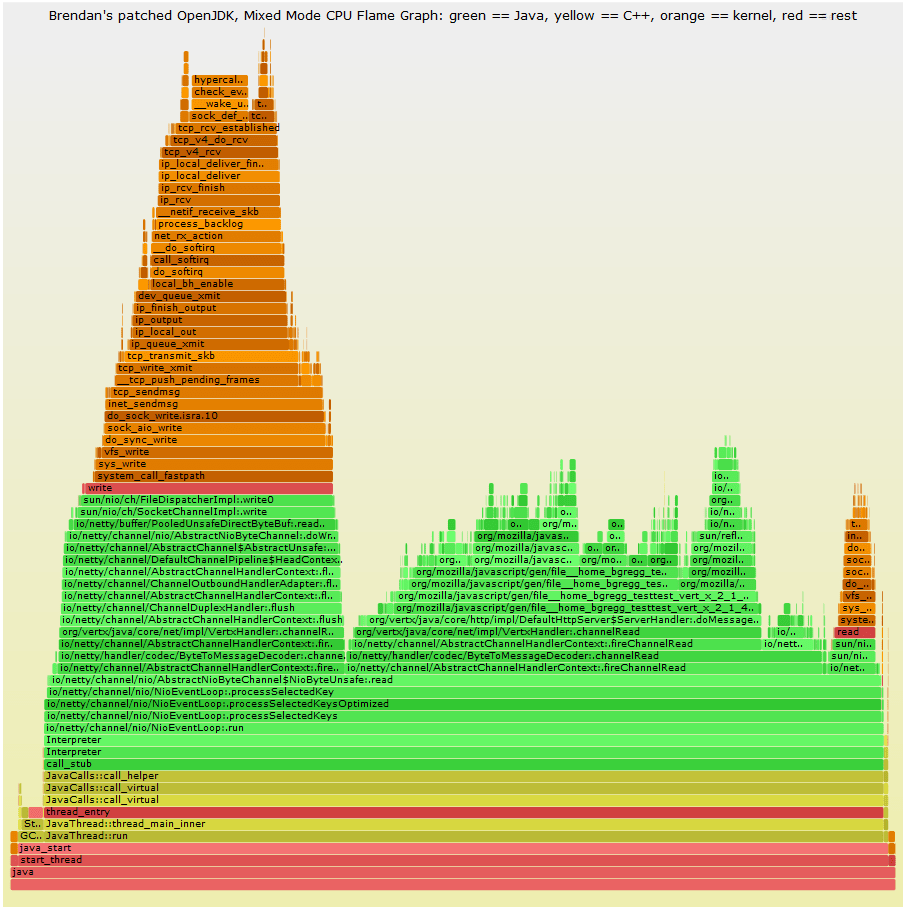
- In the flame graph, the length of each tile (frame) represents the time it took on cpu. That means, larger the length of a tile, larger was its CPU time. So while debugging an issue, you can pick a larger tile and use it as a starting point for debugging.
- The stack of functions on the base tile represent the child calls from within the base function. Using this we can see if any non-required / repetitive calls are made to any functions.
- Also, all flame graphs are interactive. You can click on any function tile and see what % of time was spent on it, number of samples collected and what are the child calls with in.

- On a whole, Flame Graphs are a great tool to generate interactive profiles to see where most of the CPU time is spent in the code.
- Although setting up prerequisite & generating FlameGraphs has a steep learning curve, I would say it is a great tool to have in a Performance Engineer’s arsenal.
- It pays off when you want to look at all the system level (low-level kernel, io etc) and application level (through all stacks) cpu calls in a single place. Most of the other profilers fall short at this.
How it helped me solve a Performance Issue ?
- I had an issue at hand where the system under test (storm) had high cpu usage even when there was no load.
- On using Yourkit, I did not get anything in the HotSpot other than some threads which were getting on CPU and then going back to sleep state.
- On looking at FlameGraph however, I could see that these threads which are periodically waking up are Storm Spouts, that are making a lot of system calls via vDSO(virtual dynamic shared object) to get the clocktime of the system.
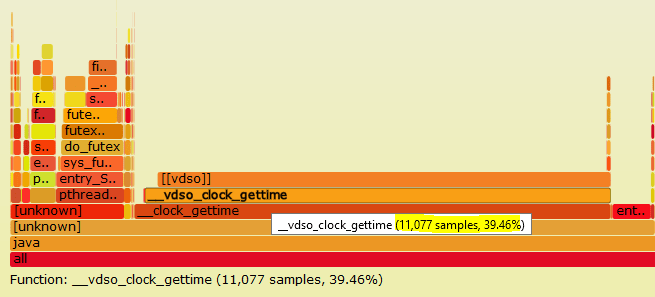
- This guided me to check the clocksource set on the system, which was xen and then change it to more optimum tsc.
- Overall helping us save over 30% of CPU time.
Further reading :
- Flame graph man page – http://www.brendangregg.com/FlameGraphs/cpuflamegraphs.html
- Talk by Brendan Gregg on using FlameGraph – https://www.youtube.com/watch?v=D53T1Ejig1Q
- What is clocksource and why does it matter ? – https://lwn.net/Articles/415470/
- Performance benefits other teams have seen switching clocksource – https://heap.io/blog/engineering/clocksource-aws-ec2-vdso
Happy tuning.
 Engineering Blog